
Before you begin
Confirm your brokerage is provisioned in Counter Pro and you can reach your Broker app URL (often https://broker.counterfin.com or your org’s custom host).
You need an account that is enabled for broker access. Platform admin users may also open the Broker shell when configured.
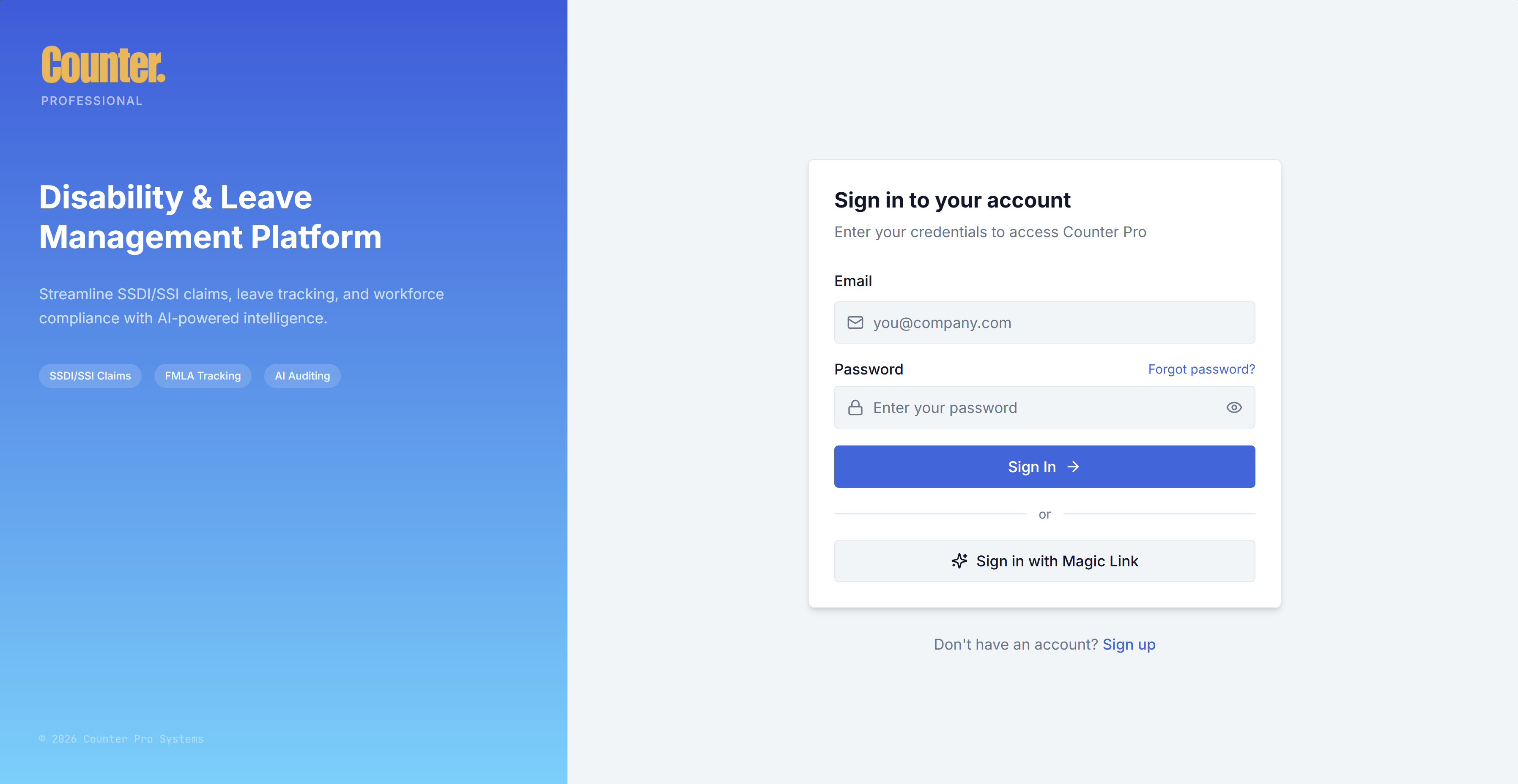
First-time access
- Your firm may send a welcome email with a link to open the Broker app and sign in.
- If you were invited to a team, use the invite link to accept the invitation and complete any required steps before signing in normally.
Login and password
- Use Login with your email and password.
- If you forgot your password, use Forgot password and follow the email instructions.
Who can use the Broker app
Access is limited to accounts set up as broker users (or admins as above). If you see Access Restricted, your default role may be another product (for example HR or Advocate). Your organization must adjust user preferences / role or provisioning before you can use the Broker shell.
Broker team roles
Within your firm, team members have roles such as owner, admin, member, and viewer. These control whether you can change data, send forms, manage team settings, or view only. Details appear in Settings.
Onboarding tour
The first time you use the app, an onboarding tour may run. You can reopen it from the help control in the header until you mark the tour complete.
Support impersonation
If internal support opens the app on your behalf, you may see an impersonation banner at the top. That session is for troubleshooting only.
Next steps
- Read the Overview for a map of all guides.
- Open Dashboard to learn the case list and header tools.
- Use New Intake when you are ready to create your first case.