
Introduction
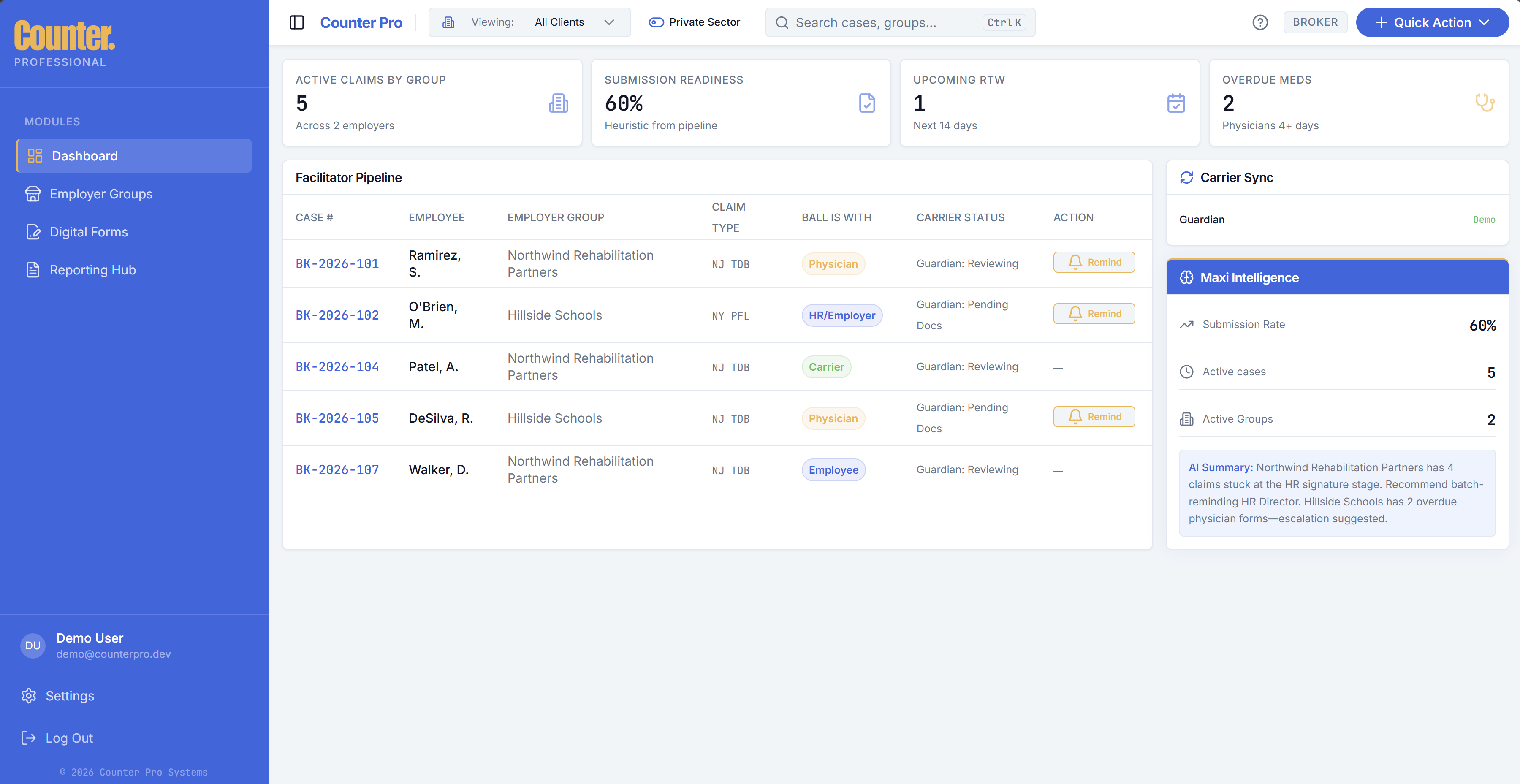
Welcome to the Counter Pro — Broker documentation. The Broker app is the workspace for benefits brokers who manage disability and paid-family-leave style claims for employer clients.
With the Broker app you can:
- Open and track cases (one employee leave claim per case).
- Organize work by employer group (client company).
- Send and monitor digital forms for e-signature (employee, employer, physician, and care recipient where applicable).
- Store documents, view a case timeline, add notes, and use Maxi Intelligence summaries to see what needs attention.
- Run reporting (including quarterly-style utilization summaries).
Production is often hosted at https://broker.counterfin.com — your organization may use a different URL.
Who this is for
These docs are for brokerage users (owners, admins, members, and viewers) who work in the Broker app day to day, and for internal support helping them.
What you'll find here
| Topic | Description |
|---|---|
| Getting started | Sign-in, invites, roles, and access |
| Dashboard | Case list, columns, filters, reminders, Maxi |
| New Intake | Creating cases and claim types (NJ TDB, NY DBL, NY PFL) |
| Claim workspace | Single-case work: documents, forms, timeline, notes |
| Employer groups | Client employers and sector filters |
| Digital forms | Envelopes, signers, and the forms library |
| Reporting Hub | Metrics, charts, and exports |
| Settings | Profile, branding, team, notifications, security |
| Glossary | Key terms |
| Troubleshooting | Common issues and fixes |
Navigation in the app
The sidebar includes Dashboard, Employer Groups, Digital Forms, Reporting Hub, and Settings. Claim workspace opens when you select a case from the dashboard (it is not a separate sidebar item).
The header provides Viewing (employer group filter), private/public sector toggle, global search, Quick Action (New Intake, quarterly report, forms library, upload), and help/tour.
Next steps
Start with Getting started, then use the guides above for each area of the product.