
Introduction
Settings covers your profile, company branding, team membership, notifications, and security. Open it from the sidebar footer (not the main module list).
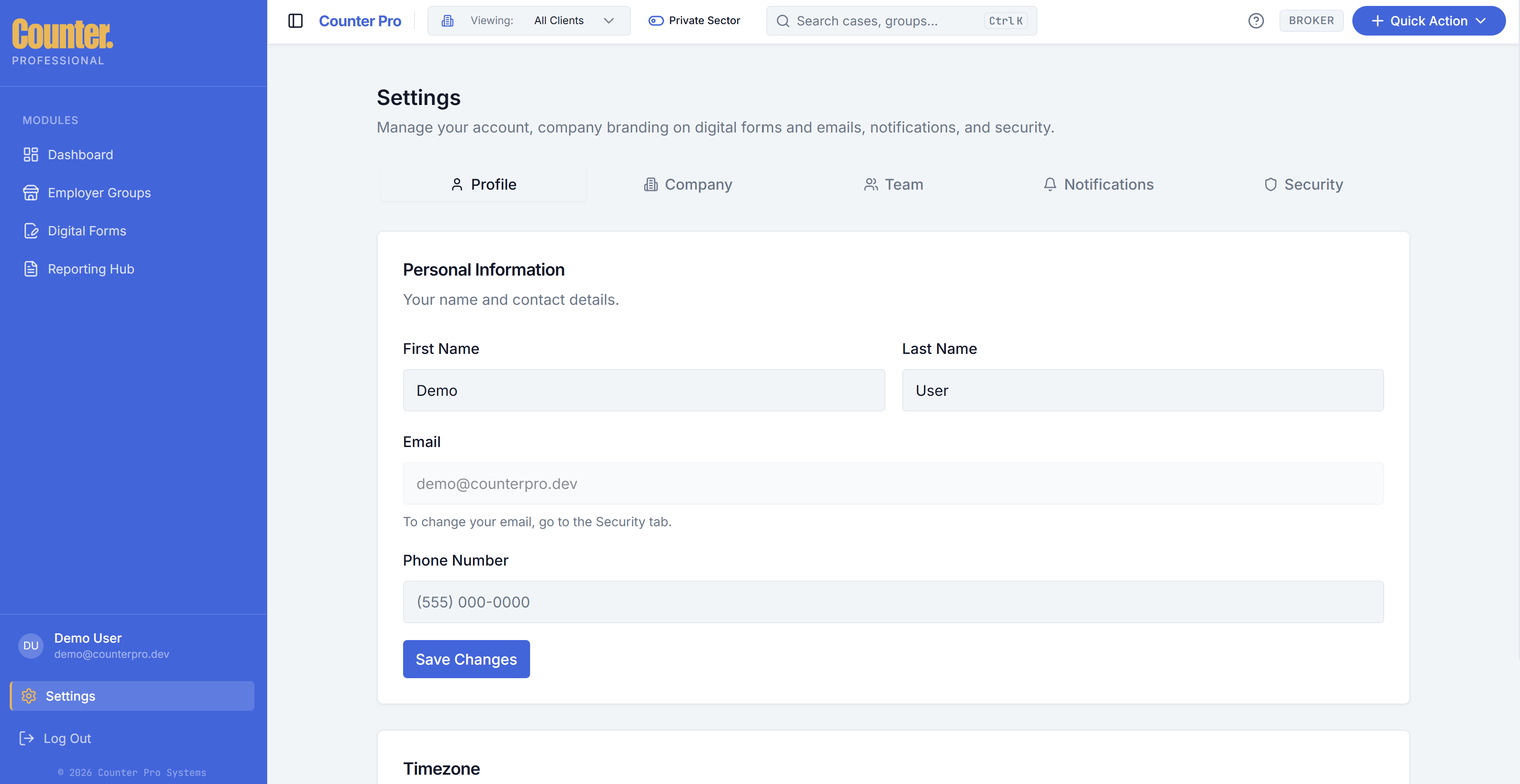
Profile
Update your personal broker profile information used in the app.
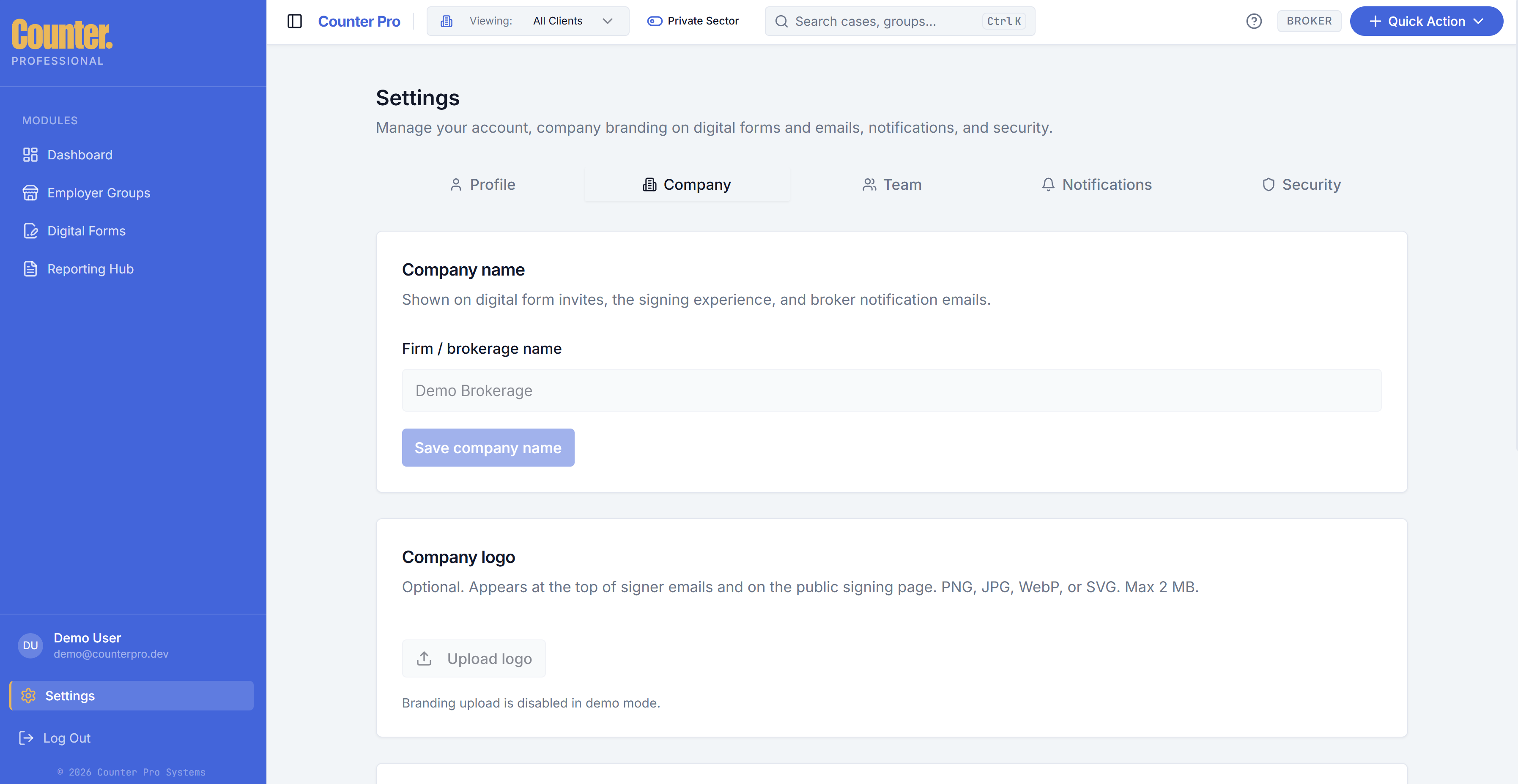
Company (firm / brokerage)
- Firm or brokerage name — Shown in appropriate customer-facing places.
- Logo — Uploaded to storage; used on digital form invites, signing, and broker notification emails.
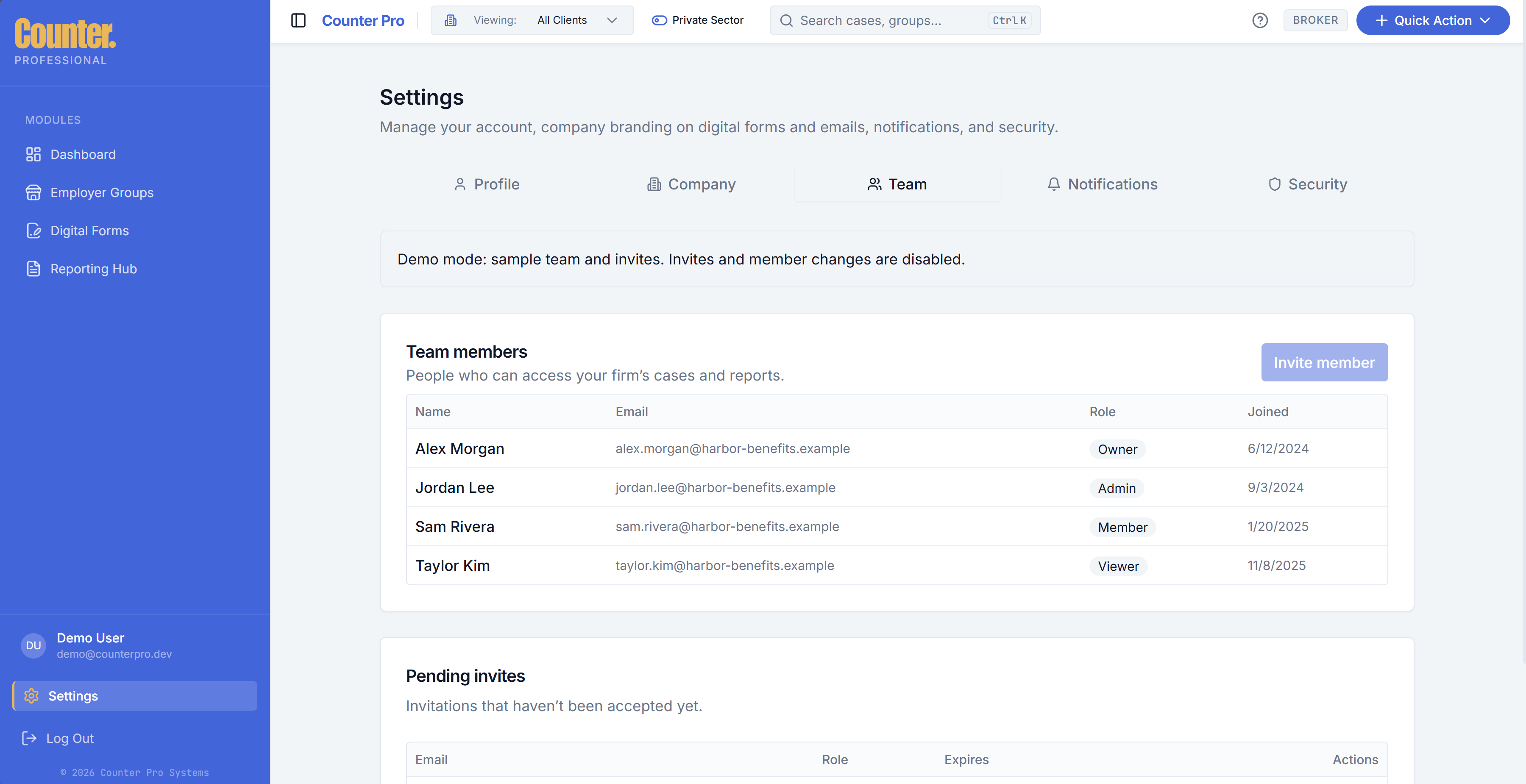
Team
- Invite colleagues by email to your brokerage workspace.
- Manage members — Roles (owner, admin, member, viewer) control who can edit cases, send forms, and administer the firm. Removals follow your organization’s policy.
Notifications
Configure how you receive in-app or email notifications where available.
Security
Manage email and password for your account (and related auth settings your build exposes).