Introduction
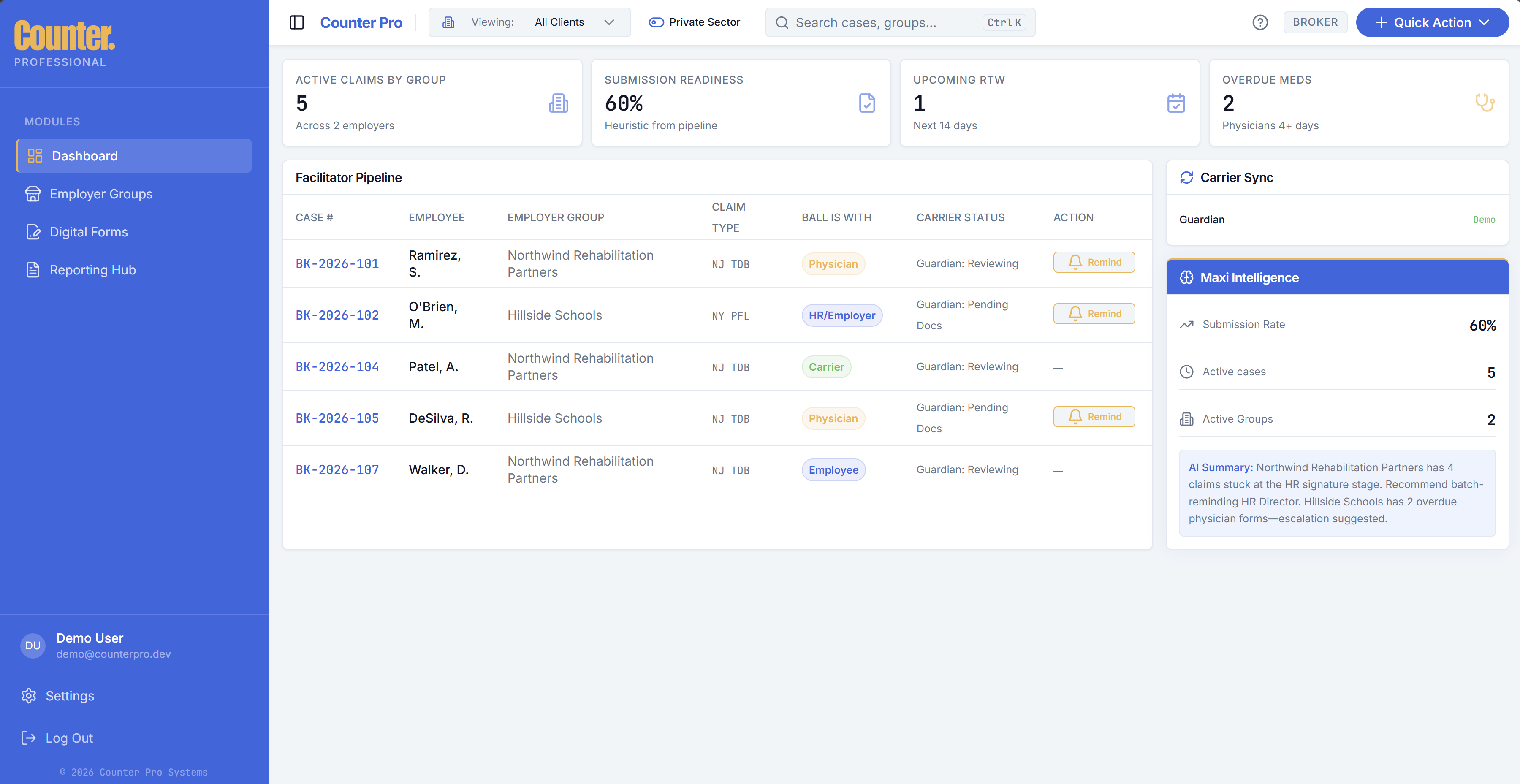
The Dashboard is your home view in the Broker app. It lists cases (employee leave / disability claims) and surfaces metrics so you can prioritize follow-ups.
Case list columns
Each row is one case. Typical columns include:
| Column | Meaning |
|---|---|
| Case ID | Internal reference (demo may show formats like BK-YYYY-###; live cases use system IDs). |
| Employee | Employee name on the claim. |
| Group | Employer group (client). |
| Claim type | Program such as NJ TDB, NY DBL, or NY PFL. |
| Ball with | Which party owns the next action (for example Physician, HR/Employer, Employee, Carrier). |
| Carrier status | High-level carrier or workflow status. |
| Days stuck | Aging signal when work is stalled. |
| Dates | Last updated, return-to-work expectations, or similar where shown. |
Open a case: click a row to open the claim workspace.
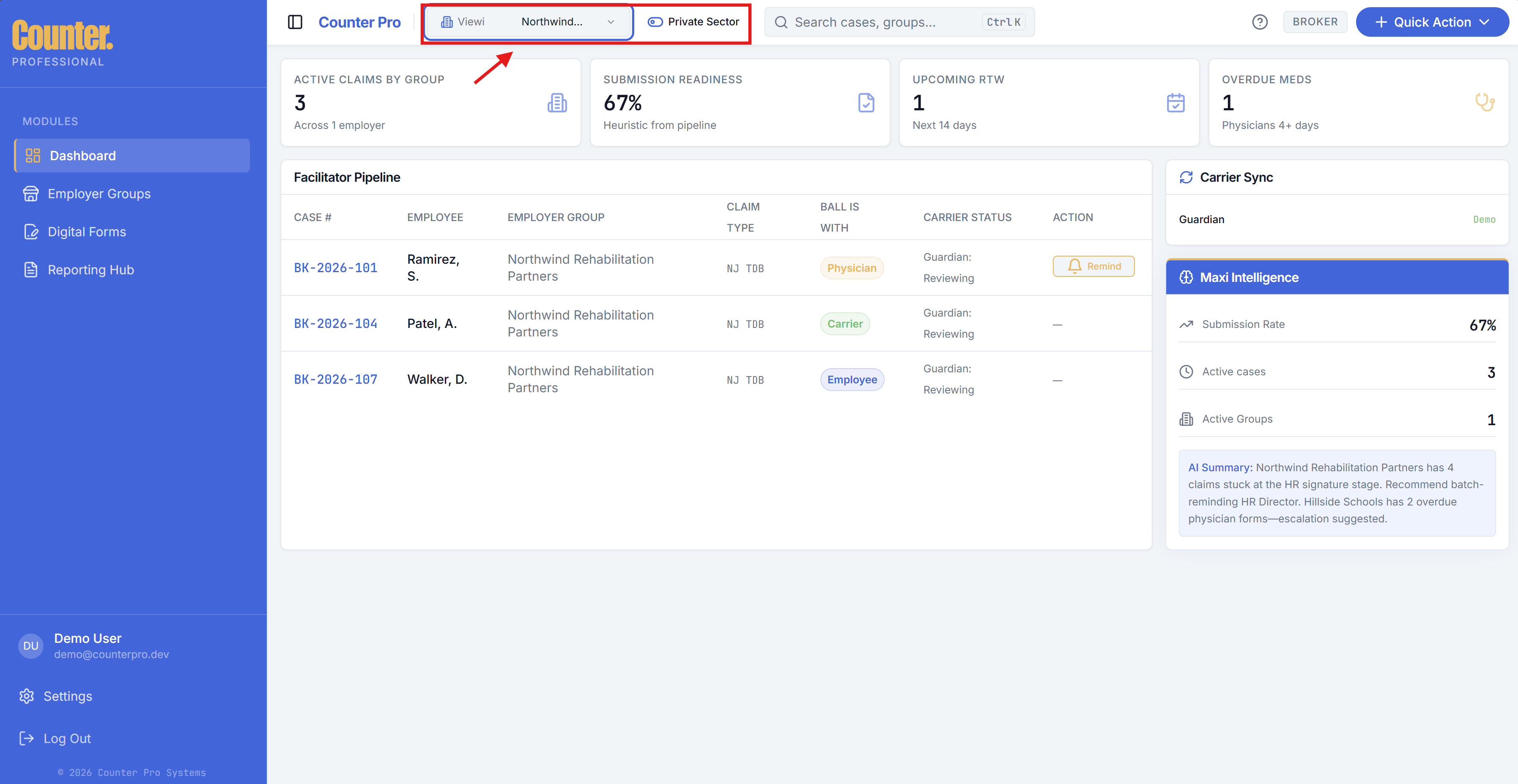
Header: Viewing filter
Viewing limits the dashboard case list (and related views that respect this filter) to one employer group or All Clients.
Private / Public sector toggle
The sector toggle controls which employer groups appear when groups are tagged private or public sector. If a selected client disappears when you toggle, choose All Clients or another visible group.
Global search
Use the header search control to find cases and related items across your workspace.
Quick Action menu
From Quick Action you can:
- New Intake — start a new case (New Intake guide).
- Generate Quarterly Report — start a quarterly-style report (Reporting Hub).
- Digital Forms library — jump to Digital forms.
- Upload File — quick document upload when available for your workflow.
Reminders and nudges
Where available, use reminder actions from the dashboard to nudge parties on stalled work.
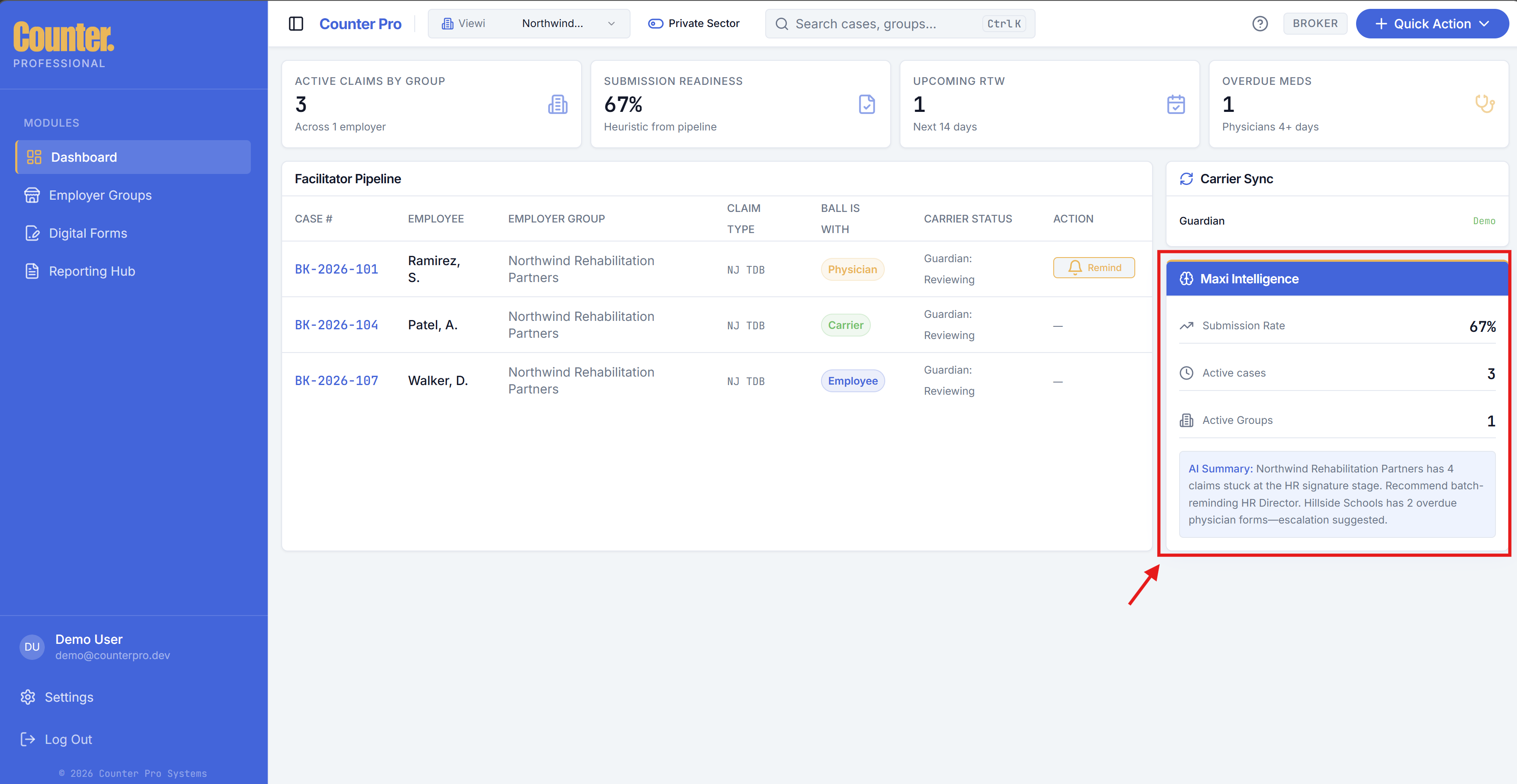
Maxi Intelligence
Maxi provides an AI-style summary of what needs attention on the dashboard. Use it as a guide, not a substitute for carrier or legal advice.