
Introduction
The Dashboard is your home view in the Advocate app. It surfaces metrics, your caseload, an action queue, Maxi Intelligence highlights, and shortcuts to recent intake activity.
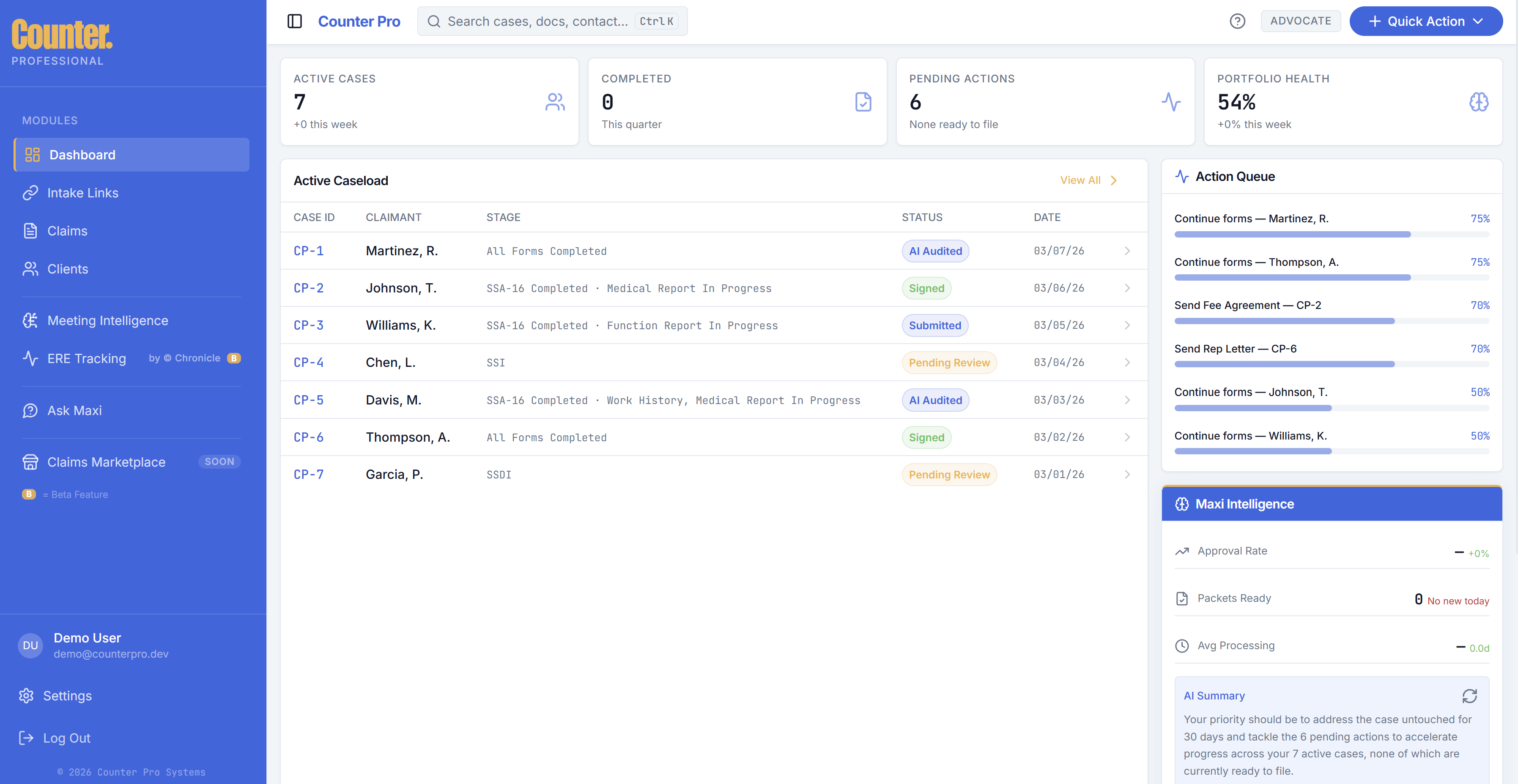
Stats and metrics
At the top of the dashboard you typically see summary cards or KPIs for your practice (for example open claims, items needing attention, or recent activity). Exact labels depend on your organization’s configuration.
Caseload table
The main table lists claims you are working. Typical behaviors:
- Columns may include claim or case reference, client or claimant name, status, dates, and other workflow fields.
- Click a row (or the primary action for that row) to open the intake workspace for that claim.
Action queue
The action queue surfaces items that need your attention next (for example pending tasks, missing documents, or follow-ups). Use it to prioritize work without scanning the full table.
Maxi Intelligence
Maxi may show a summary or highlights on the dashboard for what needs attention across your caseload (often in the same view as the screenshot above). Treat Maxi as guidance to prioritize work — not a substitute for legal, medical, or SSA advice.
Global search
Use search in the header to find claims and related records. Where supported, open the search with Ctrl+K (Windows/Linux) or Cmd+K (macOS). Selecting a result typically opens the claim or the Clients view as appropriate.
Quick Action menu
From Quick Action in the header you can start common workflows:
| Action | Typical use |
|---|---|
| New Claim | Opens a choice such as Start Claim Now (begin a claim in the product) or Send Screener (create an intake link for a client). |
| Request Documents | Opens a flow to request documents from a client or party tied to a claim. |
Related modals may ask for client or claim context before continuing.