
Introduction
Welcome to the Counter Pro — Advocate documentation. The Advocate app is the workspace for disability advocates who manage SSA-style disability cases, collaborate with clients, and run intake and claims workflows from one place.
With the Advocate app you can:
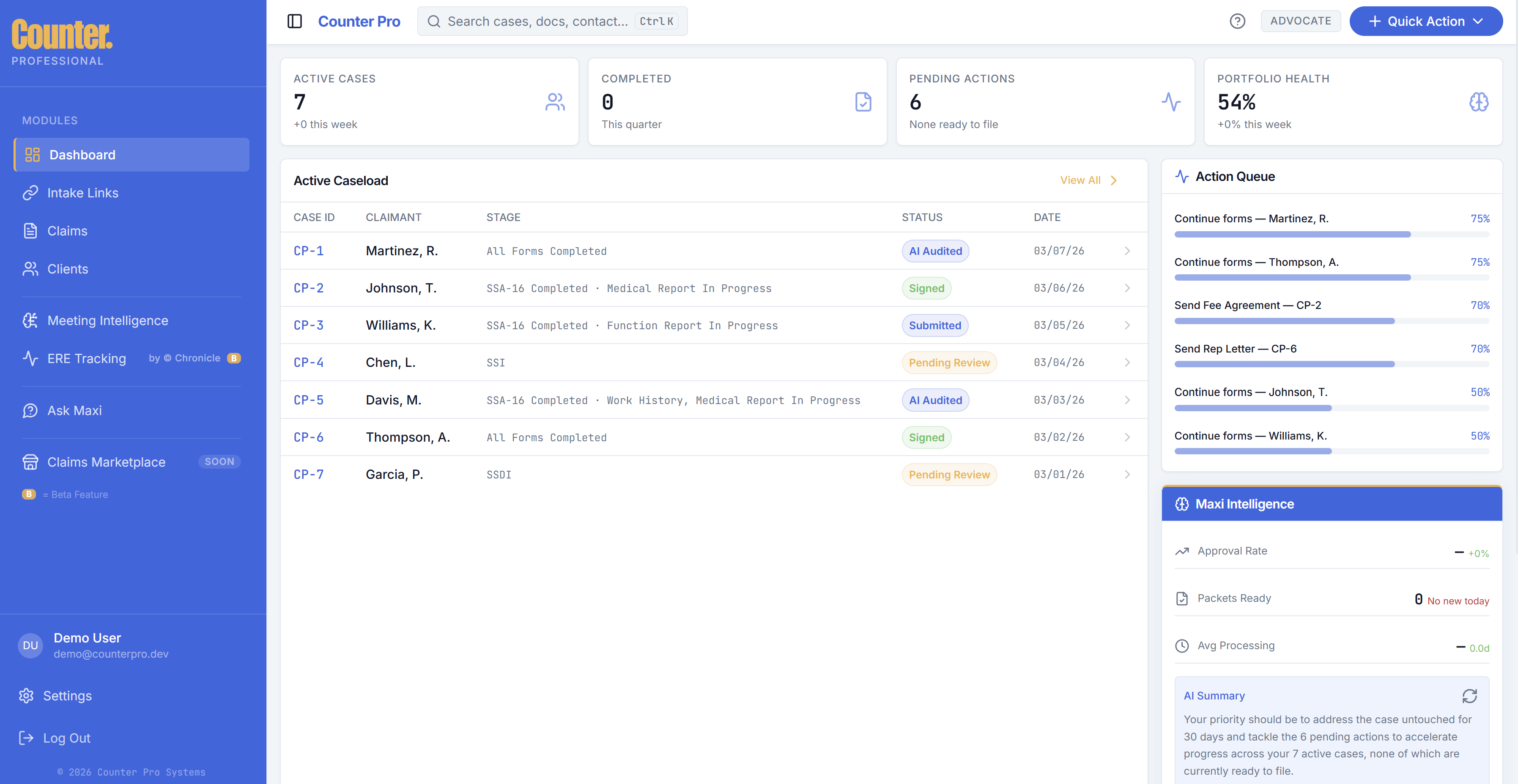
- See your dashboard with caseload, action queue, and Maxi Intelligence summaries.
- Create and manage intake links so clients can complete screeners and intake steps securely.
- Track claims and clients in dedicated lists.
- Work in the intake workspace for a single claim: forms, documents, e-signatures, notes, and exports.
- Import from document to extract claim fields from PDFs or images, and manage firm custom forms for DocuSign (when enabled).
- Use Meeting Intelligence and ERE Tracking (where enabled) alongside tools like Ask Maxi.
You can sign up for Advocate at advocate.counterfin.com/signup.
Who this is for
These docs are for advocates and firm staff who use the Advocate app in their daily work. They describe only user-facing product behavior — not internal administration.
What you'll find here
| Topic | Description |
|---|---|
| Getting started | Self-serve signup, sign-in, team invites, onboarding tour |
| Dashboard | Stats, caseload, action queue, search, Quick Action, Maxi |
| Intake Links | Creating links, tracking them, client experience |
| Claims | Claims list, filters, opening a claim |
| Clients | Client list and navigation to claims |
| Intake Workspace | Single-claim work: forms, documents, Generate Document, signing, notes |
| Import from document | Extract and review fields from a PDF or image into a claim |
| Custom forms | Firm PDFs via DocuSign templates (when enabled) |
| Meeting Intelligence | Meeting capture and insights |
| ERE Tracking | ERE workflow tracking (Chronicle) |
| Ask Maxi | AI assistant chat |
| Settings | Profile, forms, team, billing, notifications, and more |
| Glossary | Key terms |
| Troubleshooting | Common issues and fixes |
Navigation in the app
The sidebar groups areas into Casework, Integrations, and Tools:
| Area | Purpose |
|---|---|
| Dashboard | Home: metrics, caseload table, action queue, Maxi summary, recent intakes |
| Intake Links | Create and manage secure links for client screeners and intake |
| Claims | List and open claims |
| Clients | List and manage clients |
| Meeting Intelligence | Meeting-related insights and workflows |
| ERE Tracking | ERE tracking (labeled with Chronicle; may show as beta) |
| Ask Maxi | Conversational AI help |
Settings and Log out appear in the sidebar footer.
The header includes sidebar collapse, global search (keyboard shortcut where supported), Quick Action (for example New Claim and Request Documents), help/tour, and your workspace badge.
Intake workspace opens when you open a claim from the dashboard or claims list; in that view the main shell may hide the sidebar for focus.
Next steps
Start with Getting started, then open the guides that match how you work.