
Introduction
Meeting Intelligence connects your meetings to your casework in Counter Pro. You can record and transcribe video meetings (Zoom, Teams, or Google Meet) with a notetaker bot, or place phone meetings by calling Counter from your phone—we connect your client and record the call. Where your organization has enabled the integration, transcripts and extracted fields can support intake and claims work.
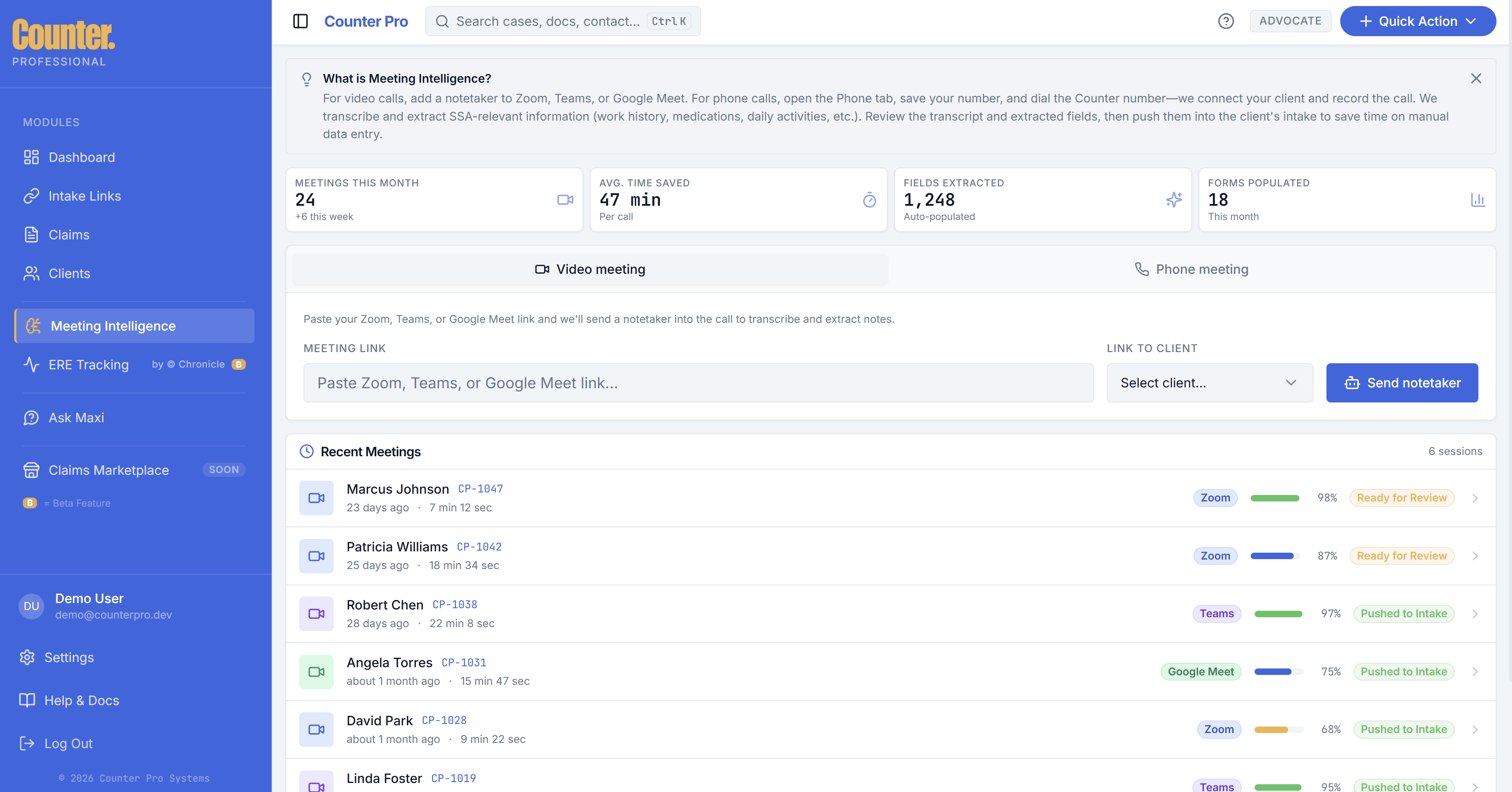
Video meetings
- Open Meeting Intelligence from the sidebar.
- Select the Video meeting tab.
- Paste your Zoom, Teams, or Google Meet link into the meeting link field.
- Choose a client from Link to client (or follow the on-screen prompt).
- Click Send notetaker to add the notetaker to the call. It will transcribe the meeting and extract SSA-relevant information (for example work history, medications, daily activities) according to your setup.
After the meeting, review the transcript and extracted fields and push them into the client’s intake when the product offers that action.
Phone meetings
Use the Phone meeting tab when you want to call in from your own phone instead of a video link.
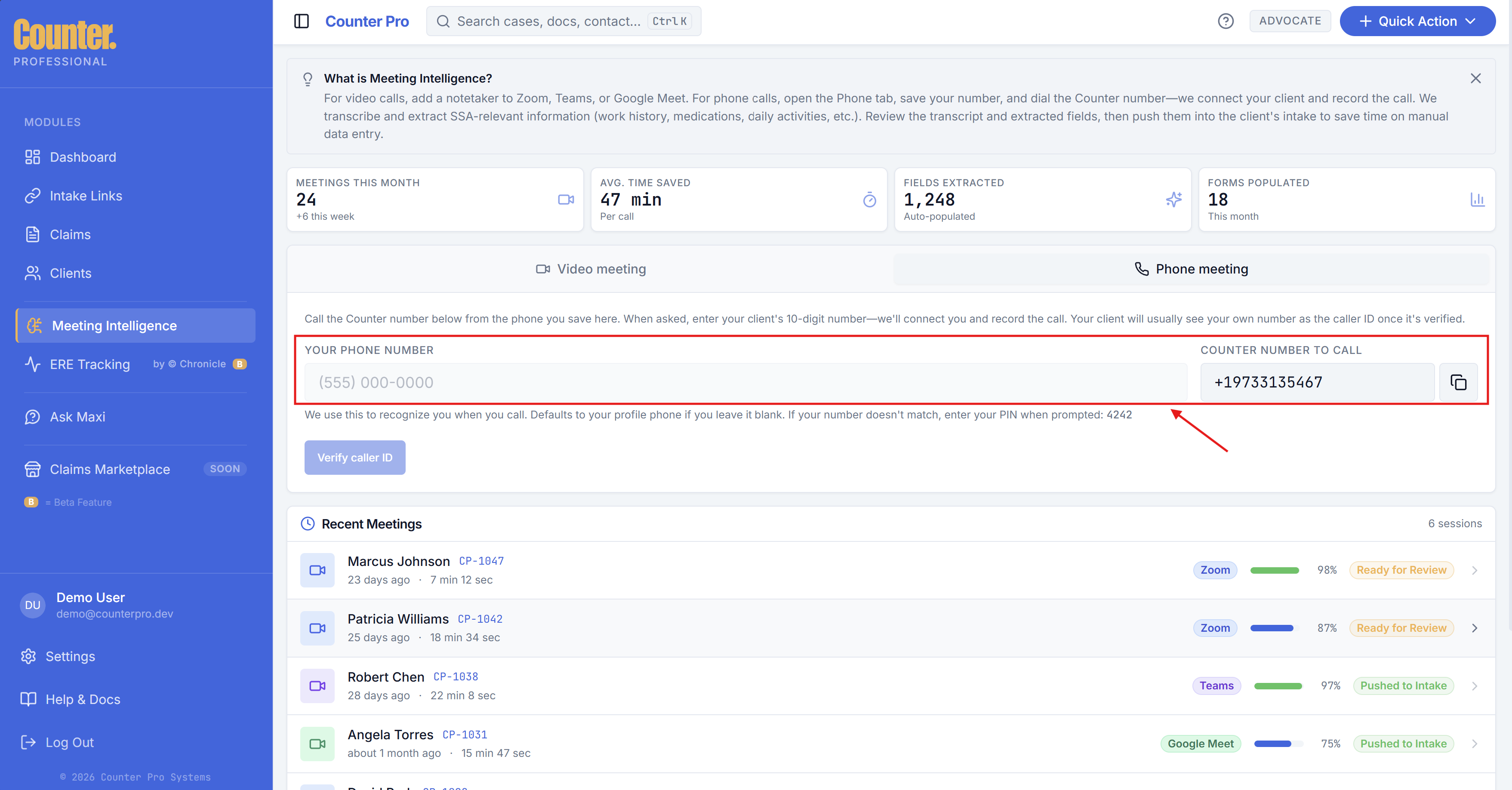
- Open Meeting Intelligence and select the Phone meeting tab.
- Enter Your phone number—the number you will call from. If you leave it blank, Counter uses your profile phone when recognizing your call.
- Copy Counter number to call (use the copy button) and dial it from the phone you saved.
- When prompted, enter your client’s 10-digit phone number. Counter connects you to your client and records the call.
- If your caller ID doesn’t match what you saved, you may be asked for your PIN—the PIN shown on this screen (for example next to “enter your PIN when prompted”).
- Click Verify caller ID and follow the prompts—you’ll get a short verification call and enter the code shown in the app. After verification, you’ll see a green Caller ID verified badge; your client will usually see your number as the caller ID when possible.
Your admin controls whether phone meetings and caller ID verification are available.
Recent meetings
Below the video and phone controls, Recent meetings lists your sessions with time, duration, platform (Zoom, Teams, Google Meet, or phone as applicable), a progress indicator, and status chips such as Ready for review or Pushed to intake. Open a meeting from the list to review transcripts, summaries, and extracted fields.