
Introduction
Settings in the Advocate app covers your profile, representative details, firm forms, integrations, branding, notifications, preferences, security, team, and billing. Open it from the sidebar footer (gear icon). Some tabs appear only for advocates or firm admins, or when a feature is enabled for your account.
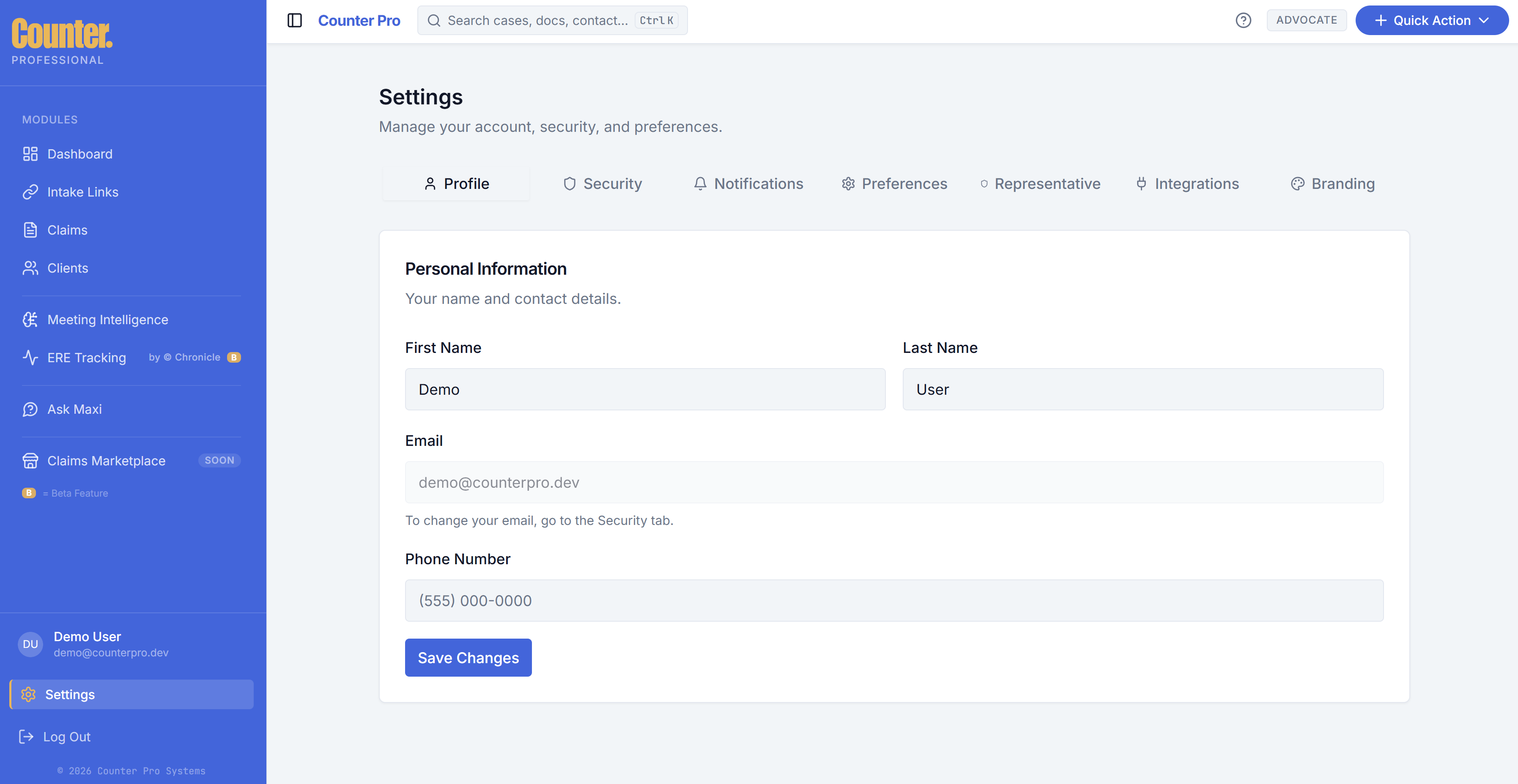
Profile
Update your name, contact information, and other personal fields shown in the app. This is your individual advocate profile.
Representative
The Representative tab holds fields your firm uses for SSA representation or signatures (for example professional title, firm address, or bar information). Complete what your compliance team requires. These details often appear on generated documents and signing flows.
Forms
The Forms tab is where firm admins and writers manage custom forms — upload a PDF, place DocuSign fields, and mark templates ready for Generate Document.
This tab appears only when Custom forms is enabled for your account. If you do not see it, ask Counter to turn the feature on for your firm or user.
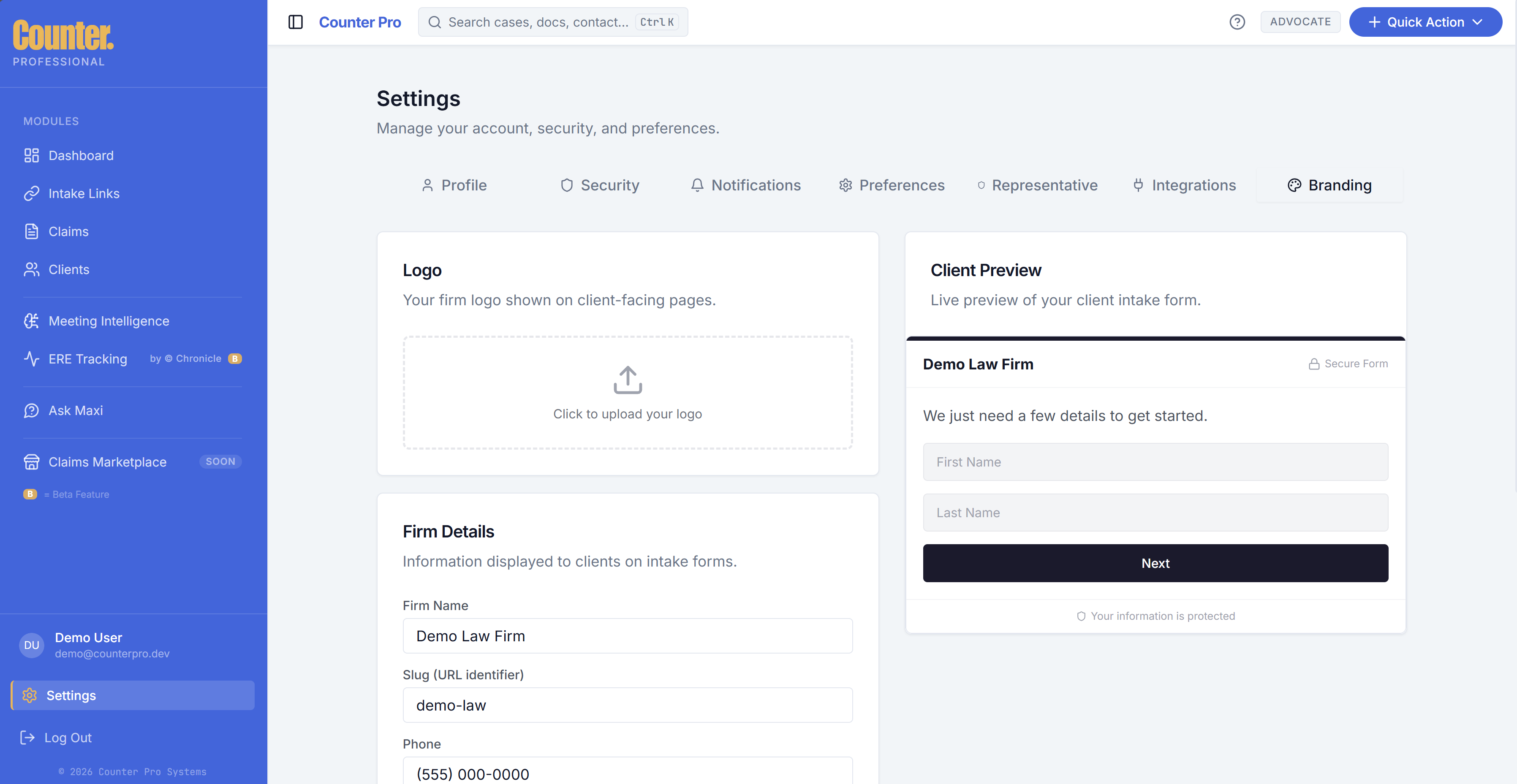
Branding
Branding controls how your firm appears on client-facing experiences (for example firm name and logo on intake links or emails). After onboarding, you may be directed here to upload assets.
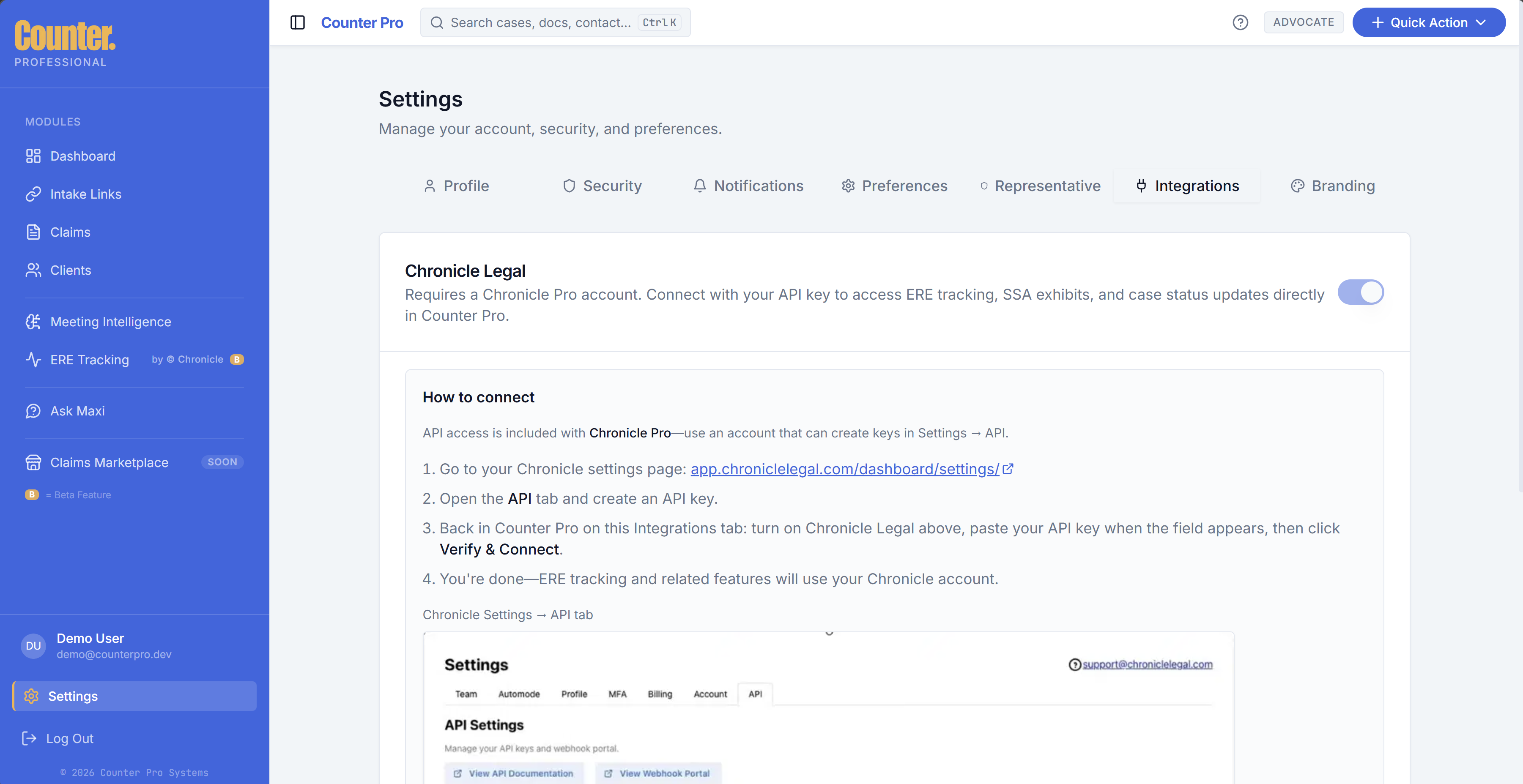
Integrations
Connect or manage third-party tools (for example Chronicle for ERE-related features). Some toggles may be disabled in demo environments or until an admin enables the integration.
Notifications
Under Notifications, choose which events send you an email:
| Option | Typical purpose |
|---|---|
| Intake Submissions | Client completes an intake form. |
| Claim Status Changes | Claim status updates. |
| Meeting Summaries | Meeting summary is ready. |
| Document Signatures | Client signs a document via DocuSign (including firm custom forms). |
Turn Document Signatures on if you want an email when a claimant finishes signing.
Preferences
Preferences may include timezone and other personal defaults. Adjust to match how you work.
Security
Manage email, password, and other account security settings (such as sign-out of other sessions) according to what your build provides.
Team
The Team tab lists firm members and pending invites. Firm admins can invite people, manage roles, and control who can access clients, claims, and intake links. Non-admins typically see a read-only member list.
Billing
The Billing tab (for users with permission) covers your firm plan, checkout, invoices, and related subscription controls. Admins usually manage upgrades and the Stripe customer portal from here. Contact Counter if you need plan changes outside self-serve billing.